Getting Started with Conductor for Gemini CLI

# Introduction
When you open Gemini CLI, describe a feature you need to build, and the agent immediately starts writing code. No questions, no clarifications, no plan. Ten minutes later, you have a hundred lines of implementation across four files and none of it matches your actual architecture because the agent never knew your architecture. It made plausible guesses. Some were right. Most weren’t. Now you’re untangling AI-generated code while wondering if it would have been faster to just write it yourself.
That’s not a Gemini problem. That’s a context problem. The agent doesn’t know what you’re building, what libraries you’ve chosen, what your coding standards are, or what the feature is actually supposed to do. Every session starts from zero.
Conductor, released in preview on December 17, 2025, is a Gemini CLI extension built to fix this. It introduces a workflow called Context-Driven Development (CDD), a structured approach where your project context, specs, and implementation plans live in Markdown files inside your repository, not inside an ephemeral chat window. The agent reads those files every time it touches your project. Your style guides, your tech stack decisions, your product goals — all of it persists and travels with the code.
Since launch, the Conductor GitHub repository has accumulated over 3,600 stars and 284 forks. A Google Codelab walking through a full greenfield project with Conductor went live in April 2026. This article covers everything you need to go from zero to running your first implementation track.
# What Conductor Actually Is
Before getting into the commands, it helps to understand the model Conductor is built on, because it changes how you think about AI-assisted development.
Standard AI coding workflows are stateless. You open a session, describe what you want, the agent works, you close the session. Next time you open it, the agent remembers nothing about what you built, why you built it, or what comes next. As one Google Cloud developer put it, the model is “transient, forgetful, and a bit of a cowboy.”
Conductor solves this by making context a managed artifact. Instead of describing your project fresh every session, you maintain a set of Markdown files that do that job permanently. The agent reads them on every run. Your coding standards are always loaded. Your product goals are always in scope. The feature plan is always visible.
Google’s announcement post invokes Benjamin Franklin’s “failing to plan is planning to fail” to describe the philosophy, and the framing holds. The Conductor workflow is: build context first, spec the feature, plan the implementation, then write code. In that order, every time.
Architecturally, Conductor operates as three layers working together.
- The Command Layer is what you interact with — six slash commands inside Gemini CLI
- The Artifact Layer is a
conductor/directory in your repo containing Markdown and JSON files that hold project state - The Version Control Layer is Git, which Conductor uses to create per-task commits and support its rollback functionality
This works for both greenfield projects (starting from scratch) and brownfield projects (existing codebases). The brownfield support is worth highlighting because most tutorials only demo clean-slate projects. When you run /conductor:setup on an existing repo, Conductor analyzes your codebase, respects your .gitignore and .geminiignore patterns, and infers your tech stack and architecture — so you’re not manually filling in context Conductor can figure out itself.
# Prerequisites and Installation
You need three things before installing Conductor.
Gemini CLI must be installed and working. Install it globally with npm:
# Install Gemini CLI globally
npm install -g @google/gemini-cli

# Verify installation
gemini --version
If you run into permission errors, use a Node version manager like nvm rather than running as root. After installing, restart your terminal so the gemini binary is in your PATH.
A Google API key or Vertex AI setup is required for Gemini CLI authentication. When you first run gemini, it will prompt you to authenticate. Select Vertex AI and follow the guide to set your GOOGLE_API_KEY environment variable, or complete the browser-based OAuth flow for personal use.
Git must be initialized in your project directory. Conductor creates per-task commits and relies on Git for its revert functionality. If you’re starting a new project:
# Initialize a new git repository if you haven't already
mkdir my-project && cd my-project
git init
git commit --allow-empty -m "Initial commit"
With those in place, install Conductor:
# Install the Conductor extension
gemini extensions install

# The --auto-update flag keeps Conductor updated to new releases automatically.
# Recommended for most users.
gemini extensions install  --auto-update
The installation downloads the extension from the GitHub repository, registers the six Conductor commands, configures a GEMINI.md context file as the entry point, and sets /conductor as the plan directory. The whole process takes a few seconds.
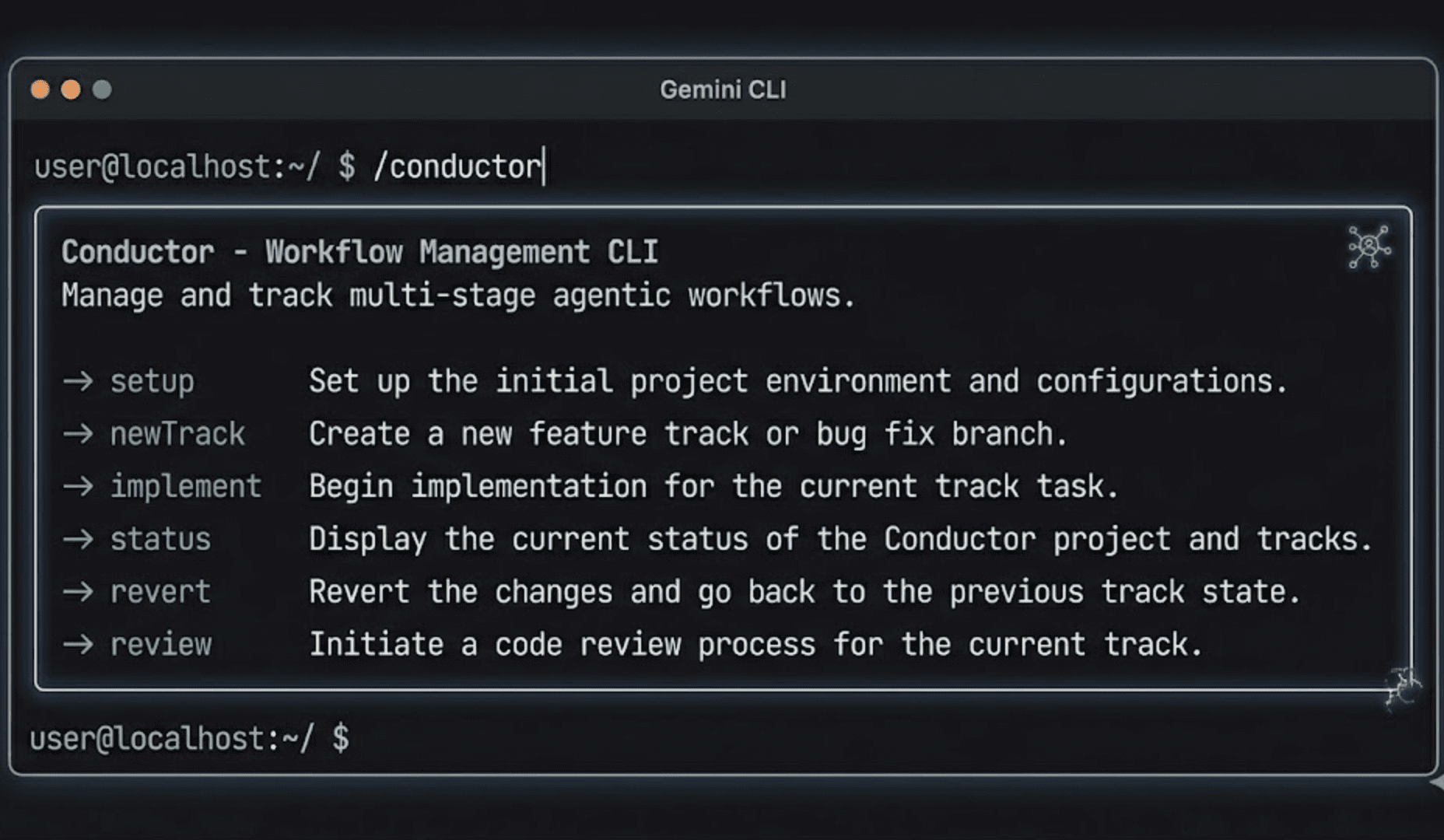
Verify it worked by launching Gemini CLI and typing /conductor:
Then inside the Gemini CLI session:
You should see the full list of sub-commands: setup, newTrack, implement, status, revert, and review. If you see those, you’re ready.
# Setting Up Your Project with /conductor:setup
Run this once per project. It’s the command that builds the foundation everything else depends on. Inside your Gemini CLI session, from your project directory:
Conductor will immediately start analyzing your project. For a brownfield project, it scans your codebase to infer what it’s working with — respecting .gitignore to avoid token-heavy directories like node_modules or __pycache__. For a new project, it asks you to describe what you’re building.
Either way, it then walks you through a guided Q&A to populate six artifacts it creates inside a new conductor/ directory:
conductor/
├── product.md                 # Product vision, users, goals, key features, success criteria
├── product-guidelines.md      # UI standards, voice and tone, error handling behavior
├── tech-stack.md              # Languages, frameworks, databases, infrastructure
├── workflow.md                # TDD preferences, commit strategy, verification protocol
├── code_styleguides/          # Language-specific style guides (auto-generated per language found)
│   ├── python.md
│   ├── typescript.md
│   └── ...
└── tracks.md                  # Master registry of all tracks (starts empty)
Each artifact plays a specific role. product.md answers the “what are we building and for whom” question. tech-stack.md ensures the agent never suggests a library or pattern outside your stack. workflow.md is where you define whether you want test-driven development (TDD), what your commit strategy looks like, and what manual verification steps you require before phases proceed. code_styleguides/ contains per-language guides that Conductor ships with pre-populated templates for, which you can then customize.
Once setup completes, you’ll see the conductor/ directory in your project. Commit it:
# Commit the conductor context to your repo
git add conductor/
git commit -m "chore: initialize Conductor context-driven development"
From this point on, any teammate who clones the repo and opens Gemini CLI has the full project context available immediately — no onboarding conversation needed.
# Starting a Feature with /conductor:newTrack
A track is how Conductor represents a unit of work. One feature, one bug fix, one architectural change — one track. Tracks give the agent a defined scope to work within, which is the core mechanism that prevents it from wandering.
Start a track by describing what you want to build:
/conductor:newTrack "Add a dark mode toggle to the settings page, persisting the preference to localStorage"
You can also call /conductor:newTrack without an argument and describe the feature interactively when Conductor prompts you.
Conductor takes your description, reads the full project context from conductor/, and generates three files inside a new conductor/tracks/ directory:
conductor/tracks/
└── dark_mode_20260614/
    ├── spec.md           # The "what and why" -- requirements, goals, technical constraints, out of scope
    ├── plan.md           # The phased, task-level implementation checklist
    └── metadata.json     # Track ID, creation date, current status
The track ID format is shortname_YYYYMMDD, so dark_mode_20260614 for a dark mode track created on June 14, 2026. This keeps tracks sorted chronologically in your file system.
spec.md contains the specification: what problem this solves, what the goals are, the technical requirements, and explicitly what is out of scope. The out-of-scope section matters more than it looks — it prevents the agent from gold-plating a feature when it should be shipping it.
plan.md is the implementation checklist, organized into phases. A dark mode feature might look like this:
# Implementation Plan - Dark Mode Toggle

## Phase 1: Foundation
- [ ] Task: Add `theme` key to the localStorage schema and document it in the project README
- [ ] Task: Create a `useTheme` hook that reads/writes the `theme` value and defaults to system preference
- [ ] Task: Write unit tests for `useTheme` -- verify default behavior, localStorage read, localStorage write
- [ ] Task: Conductor - User Manual Verification 'Foundation' (Protocol in workflow.md)

## Phase 2: UI Component
- [ ] Task: Build `ThemeToggle` component with accessible toggle button (aria-label, keyboard support)
- [ ] Task: Apply conditional CSS classes based on the current theme value from `useTheme`
- [ ] Task: Write component tests for `ThemeToggle` -- renders correctly, fires toggle on click
- [ ] Task: Conductor - User Manual Verification 'UI Component' (Protocol in workflow.md)

## Phase 3: Settings Page Integration
- [ ] Task: Import `ThemeToggle` into the Settings page component
- [ ] Task: Verify that preference persists across page refreshes and new browser tabs
- [ ] Task: Write integration test for the full settings page with dark mode enabled
- [ ] Task: Conductor - User Manual Verification 'Settings Page Integration' (Protocol in workflow.md)
Read this plan before you run /conductor:implement. This is the human-in-the-loop moment Conductor is designed around. If the phases are wrong, if a task is missing, or if the scope is wider than you intended, edit plan.md now. Once you run implement, Conductor commits code against this plan. Changing course mid-implementation is possible but more expensive than catching it here.
# Implementing with /conductor:implement
Once you’re satisfied with the plan:
This is where Conductor earns its place. It reads plan.md, picks up the first unchecked task, and starts working through the list. As it starts a task, it updates the checkbox from [ ] to [~] (in progress). When it completes the task, it updates it to [x] and creates a Git commit — one commit per completed task. Not per phase, not per session, per task.
You’ll see commits accumulating as Conductor works:
Output example:
a3f9c12 feat(theme): write integration test for settings page dark mode
b7e2d45 feat(theme): import ThemeToggle into Settings page
c1a8f90 feat(theme): add accessible toggle button with aria-label
d4b3e21 feat(theme): create ThemeToggle component with conditional CSS
e5c6d78 test(theme): write unit tests for useTheme hook
f7d9a34 feat(theme): create useTheme hook with localStorage persistence
At the end of each phase, Conductor pauses for manual verification. You don’t proceed to the next phase until you confirm the current one is working. This is the “proof over promise” principle from the workflow — the agent doesn’t just say it works, you verify it works before the plan advances.
If you’re in a TDD workflow (configured in workflow.md), Conductor follows the cycle automatically: write the test first, confirm it fails, implement the code, confirm the test passes, then move to the next task. You don’t have to tell it to do this; the workflow file handles it.
Conductor’s state is saved to disk between tasks, which means you can stop at any point, close your laptop, switch machines, come back the next day, and run /conductor:implement again. It picks up from the first unchecked task. The implementation doesn’t live in your chat history. It lives in plan.md.
If you need to change course mid-implementation, you can edit plan.md directly. Add a task, remove one, re-order phases. Conductor reads the file fresh on each run, so your changes are picked up immediately.
Once all phases are verified and all tasks are checked off, Conductor offers to archive the track — moving conductor/tracks/dark_mode_20260614/ to conductor/tracks/archive/dark_mode_20260614/ and updating tracks.md to mark it complete. Your Git history retains the full implementation record.
# The Supporting Commands
The three core commands — setup, newTrack, implement — cover the main workflow. These four handle everything around it.
// /conductor:status
Run this at any time to see where your project stands across all active tracks:
Conductor reads conductor/tracks.md and each active track’s plan.md and returns a summary:
Current Date/Time: Saturday, June 14, 2026
Project Status: 🟡 Active

Active Tracks:
  * dark_mode_20260614 -- Phase 2 of 3 | 7/12 tasks complete (58%)
  * api_auth_20260610  -- Phase 1 of 4 | 3/5 tasks complete (60%)

Next Action Needed:
  * Run /conductor:implement to continue dark_mode_20260614 (current track)
This is the command to run when you sit down after a break and need to remember where you were.
// /conductor:revert
When something goes wrong and you need to undo work:
Conductor is Git-aware in a way that raw git revert isn’t. It understands logical units of work — tracks, phases, individual tasks — rather than commit hashes. If you want to revert the last phase of a track, Conductor identifies the commits that belong to that phase (using its per-task commit structure) and reverts them cleanly. It also updates plan.md to uncheck the affected tasks, so you can re-run /conductor:implement to redo the work.
This matters practically because rolling back by commit hash when an agent has touched 11 files across 14 commits over three phases is a manual exercise in misery. Conductor handles the archaeology for you.
// /conductor:review
After implementation completes, before you open a pull request:
Conductor reads your completed plan.md alongside conductor/product-guidelines.md and performs a quality check. It’s looking for drift between what the plan specified and what was implemented, and for violations of your product guidelines — inconsistent error handling, missing accessibility attributes, style guide violations.
Think of it as an AI code reviewer who has read your entire product spec and knows exactly what the feature was supposed to do. The output is a review report you can address before the code merges.
// Checking Token Usage
Conductor’s context-driven approach reads your project files on every command, which increases token consumption — especially for larger projects during setup and planning phases. Check current session usage with:
# How Conductor Works for Teams
One of the most underappreciated parts of the Conductor workflow is what happens when you commit the conductor/ directory.
Every file Conductor creates — product.md, tech-stack.md, workflow.md, the style guides, every track spec and plan — lives in your repository like any other file. When a teammate pulls the repo, they have the entire project context immediately. When they open Gemini CLI and run /conductor:status, they can see every active track and exactly where each one is in the implementation plan.
This changes what onboarding looks like. A new developer joining the project doesn’t need a two-hour walkthrough to understand the tech stack choices, the coding standards, or what features are in flight. They read conductor/product.md and conductor/tech-stack.md, run /conductor:status, and they have the operational picture.
The consistency benefit is equally significant. Every AI-assisted contribution to the project follows the same standards, because every agent session reads the same context files. One developer’s Conductor session writes code in the same style as another developer’s, because both sessions are anchored to the same code_styleguides/ directory. This is the “team harmony” property that gets harder to maintain as projects scale — Conductor builds it into the workflow structurally rather than relying on developers to enforce it manually.
# A Full Walkthrough: Adding a Dark Mode Toggle
Here’s what the complete Conductor workflow looks like from start to finish on a concrete feature. Use this as the reference for your first track on a real project.
// Step 1: Open Gemini CLI from your project directory
// Step 2: If you haven’t set up Conductor for this project, run setup first
Answer the guided questions. When you’re done, commit the conductor/ directory.
// Step 3: Create the track
/conductor:newTrack "Add a dark mode toggle to the settings page, persisting the user preference to localStorage and defaulting to system preference on first visit"
Conductor generates spec.md and plan.md in conductor/tracks/dark_mode_20260614/.
// Step 4: Read the plan before running anything
Open plan.md in your editor. Read every task. Check that the phases make sense. If anything is wrong — a missing task, a phase that shouldn’t exist, a scope that’s too wide — edit the file now and save it. Conductor reads the file fresh on every run, so your edits take effect immediately.
// Step 5: Run the implementation
Watch Conductor work through the tasks, creating commits as it goes. When it reaches the end of Phase 1, it will pause and ask you to verify manually. Test the work. When you confirm it passes, Conductor moves to Phase 2.
// Step 6: Check progress at any point
// Step 7: Review the completed implementation
Address any issues surfaced by the review. Then open your pull request with a clean implementation, a full test suite, a Git history organized by feature task, and a spec that documents exactly what was built and why.
The entire flow — setup through review — is repeatable for every feature that follows. The conductor/ directory grows as a living record of what was built, why each decision was made, and what standards the project follows.
# A Few Things Worth Knowing Before You Start
- Token consumption is real. Conductor reads your project context files on every command. For a small project, this is negligible. For a large brownfield project with many tracks in the
conductor/directory, it adds up — especially during setup and planning phases. Use/stats modelto monitor usage and consider archiving completed tracks regularly to keep the active tracks.md lean. - The
--auto-updateflag is worth using. Conductor is in preview and has been releasing frequently since December 2025. The--auto-updateflag means you get improvements automatically without having to reinstall manually. - The quality of your context determines the quality of the output. This is the flip side of context-driven development. A vague product.md produces vague planning. A tech-stack.md that doesn’t specify your testing framework produces plans that guess at it. The time you spend on the setup artifacts pays dividends on every track that follows.
- Conductor does not replace code review.
/conductor:reviewis a useful catch for obvious drift and style issues, but it’s not a substitute for human review of the code before it merges. Treat it as a first pass, not a final gate.
# Conclusion
The shift Conductor represents is not primarily about speed. Writing a spec and a plan before coding is slower in the first hour than diving straight into implementation. The payoff is everything that happens after that first hour — the agent that stays on track across sessions, the teammate who can pick up where you left off, the codebase that looks coherent because every contributor worked from the same context.
Google’s framing for Conductor is that it “treats your documentation as the source of truth” and “empowers Gemini to act as a true extension of your engineering team.” That’s accurate, but the more practical way to think about it is this: Conductor makes the agent’s behavior predictable. Predictable is what you need when the agent is writing code that ships.
The setup takes one session. The context it creates outlasts every session that follows. For a tool that costs one install command to try, that’s a very good ratio.
Install it, run /conductor:setup on your next project, and see what a plan looks like before the first line of code gets written.
// Resources
Shittu Olumide is a software engineer and technical writer passionate about leveraging cutting-edge technologies to craft compelling narratives, with a keen eye for detail and a knack for simplifying complex concepts. You can also find Shittu on Twitter.